Tutorial 6 of 8
Get help from the AI tutor
The tutor is built to ask before it answers. It can see the code you wrote and the error you hit, so its help is about your program rather than a generic answer from the internet.
- Step 1
Open the tutor and ask a real question
- On an exercise, click the floating 💬 AI tutor button near the bottom right. A drawer opens from the right side. On a lesson page the tutor is already open in the right column.
- Type what is actually confusing you into the box at the bottom, then press Ask. Be specific:
I don't understand why my print line has no space in itbeatshelp. - Look at the small uppercase label above the reply, for example HINT LEVEL 2. That tells you which step of the ladder you are on.
- The gold pill in the tutor header names the model answering you.
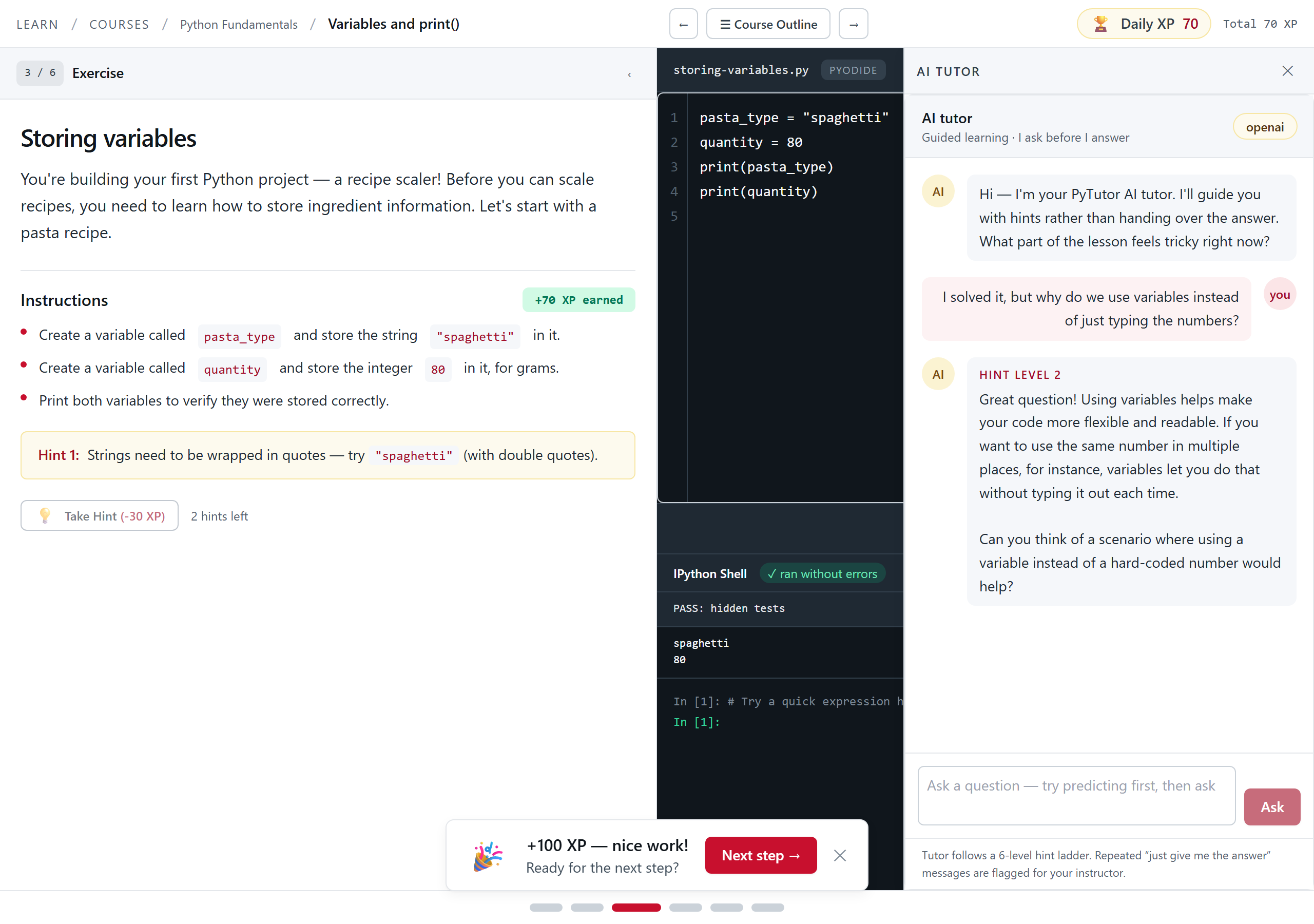
The tutor drawer. Notice that the reply ends by asking you something. - Step 2
Understand the ladder
- Level 1 is a guiding question, usually about what your error message says.
- Level 2 is the concept behind the bug.
- Level 3 is a similar code pattern, not your answer.
- Level 4 explains your error message in plain English.
- Level 5 is a partial solution with the key lines blanked out.
- Level 6 is the full solution, and it is switched off unless your instructor turns it on.
Tip. Asking for the answer outright gets a polite refusal and a lower step instead. Your conversations are saved, and course staff can read them; the note under the input box says so.
- Step 3
Hand over your actual code
- In a lesson's Hands-on coding block, click Ask the AI tutor in the button row under the editor.
- Your current code and your last error go to the tutor automatically. No copy-paste into a chatbot.
- The reply is grounded in what you actually wrote, so it will name your variables and your line.
- On the practice runner the same handoff happens through the tutor drawer.
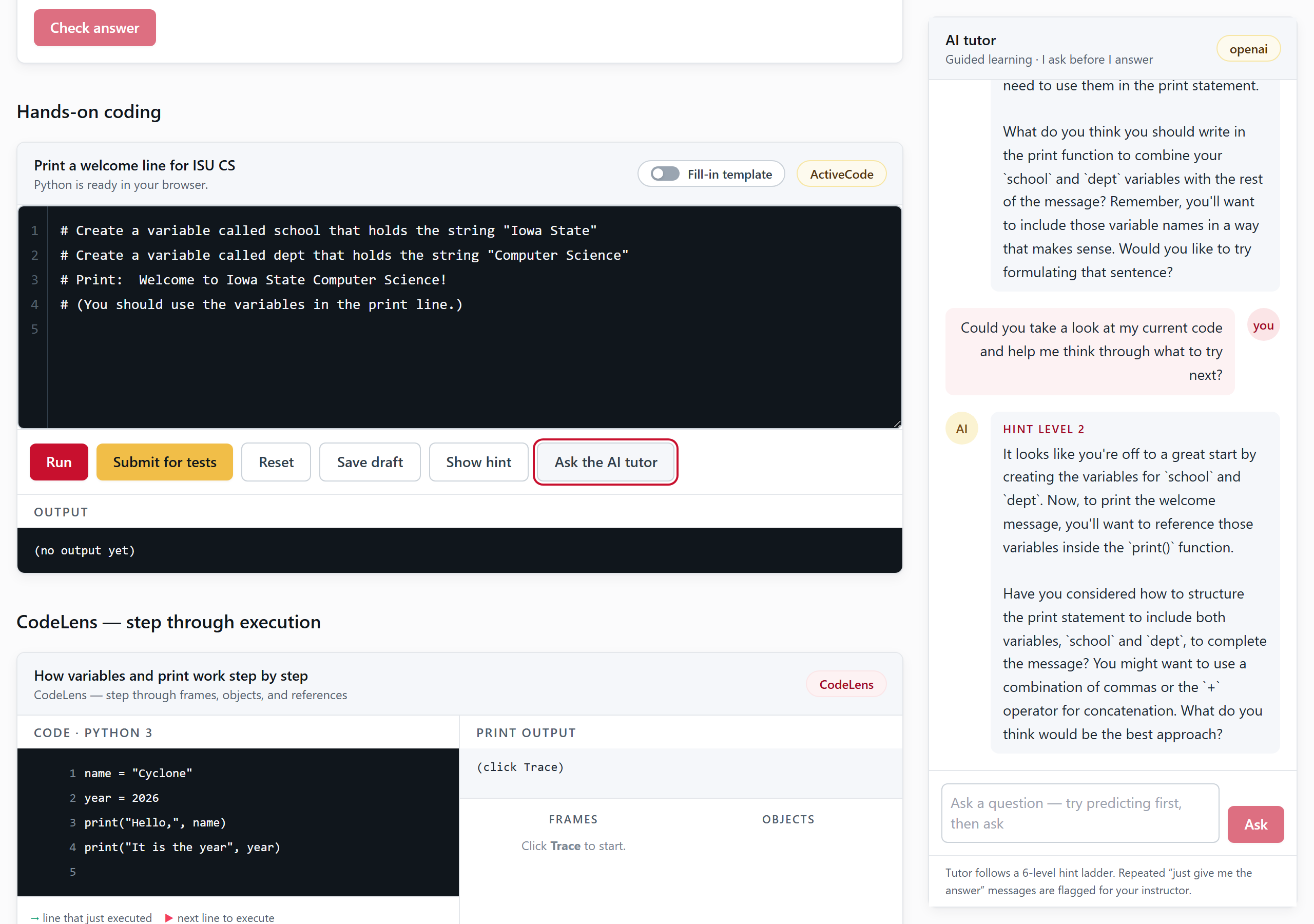
One click sends your code and your error across. The tutor answers about your program, not a generic one. - Step 4
Know your limits
- Tutor messages are capped per student. The default is 25 a day, 100 a week, and 300 a month.
- Hitting the cap gives you a clearly marked Limit reached reply, not a broken page.
- If you need more, ask your instructor. The limits are adjustable per student.
Tip. Try predicting the answer before you ask. The input box nudges you to do exactly that, and predicting first is what makes the tutor's reply stick.