Tutorial 1 of 8
Sign in and read your dashboard
Everything starts here. You sign in once, and the dashboard answers the question you actually have when you open a course: where am I, and what do I do next.
- Step 1
Sign in
- Go to the sign-in page for your course.
- Click Sign in with Google and use the Google account you were invited with. Another account will not be let in, even if it is your own.
- If you are on a shared classroom machine, sign out when you finish. The Sign out link sits under your name in the top right.
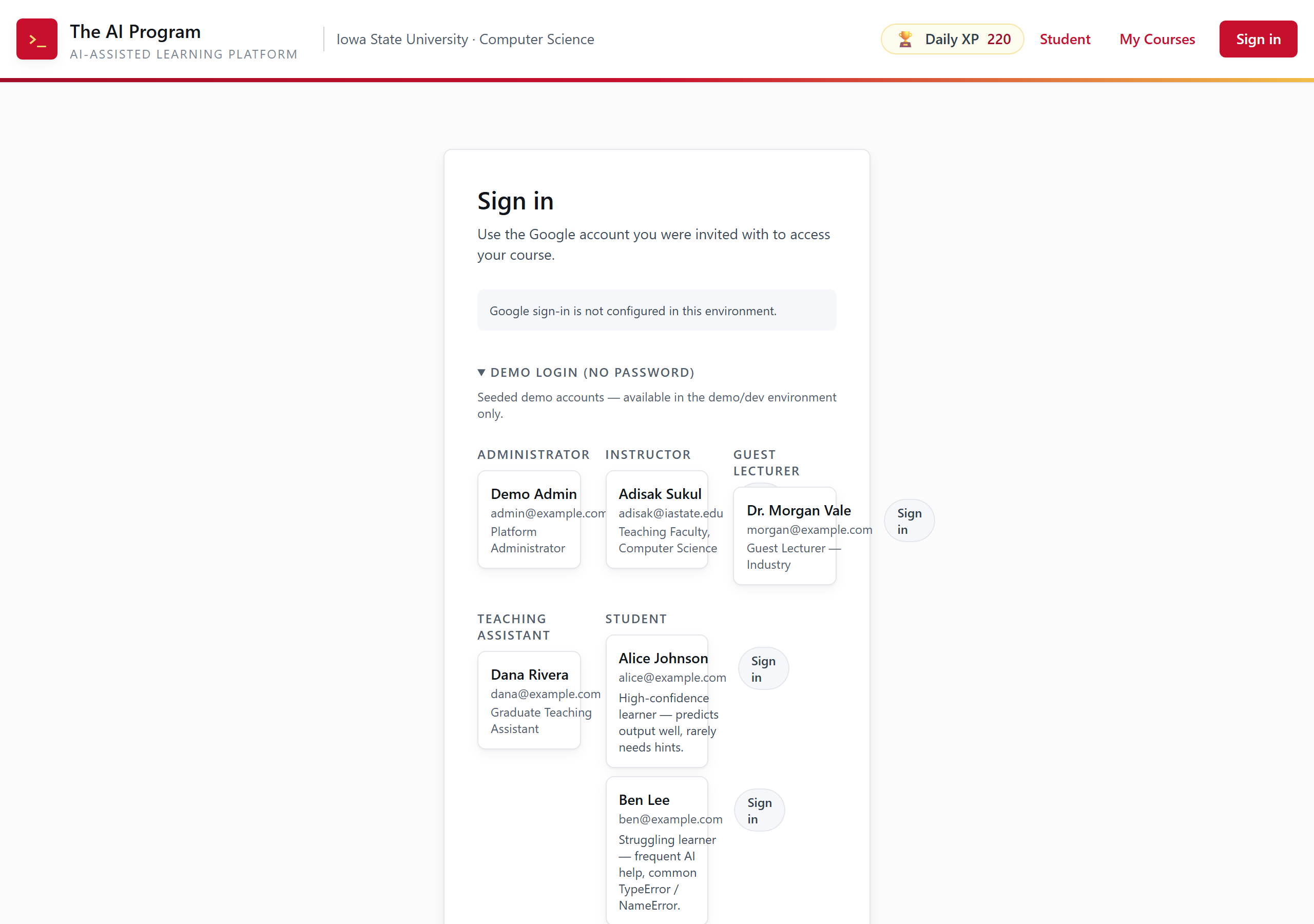
The sign-in page. The demo account picker below the Google button only appears on practice and demo servers, never on the live course. Tip. You do not install anything. Python runs inside your browser, so a Chromebook is enough. No account yet?
/startexplains what the course is and how to ask for a place. - Step 2
Read your dashboard
- After signing in you land on your dashboard.
- Read the four tiles across the top: Lessons completed, In progress, Confidence, and XP earned. The XP tile also shows today's number under
Today:and how many steps you have finished. - Scroll to Continue learning. Every module has a Start or Continue button that drops you straight into the first step you have not finished.
- Click Open course at the top right when you want the full outline instead.
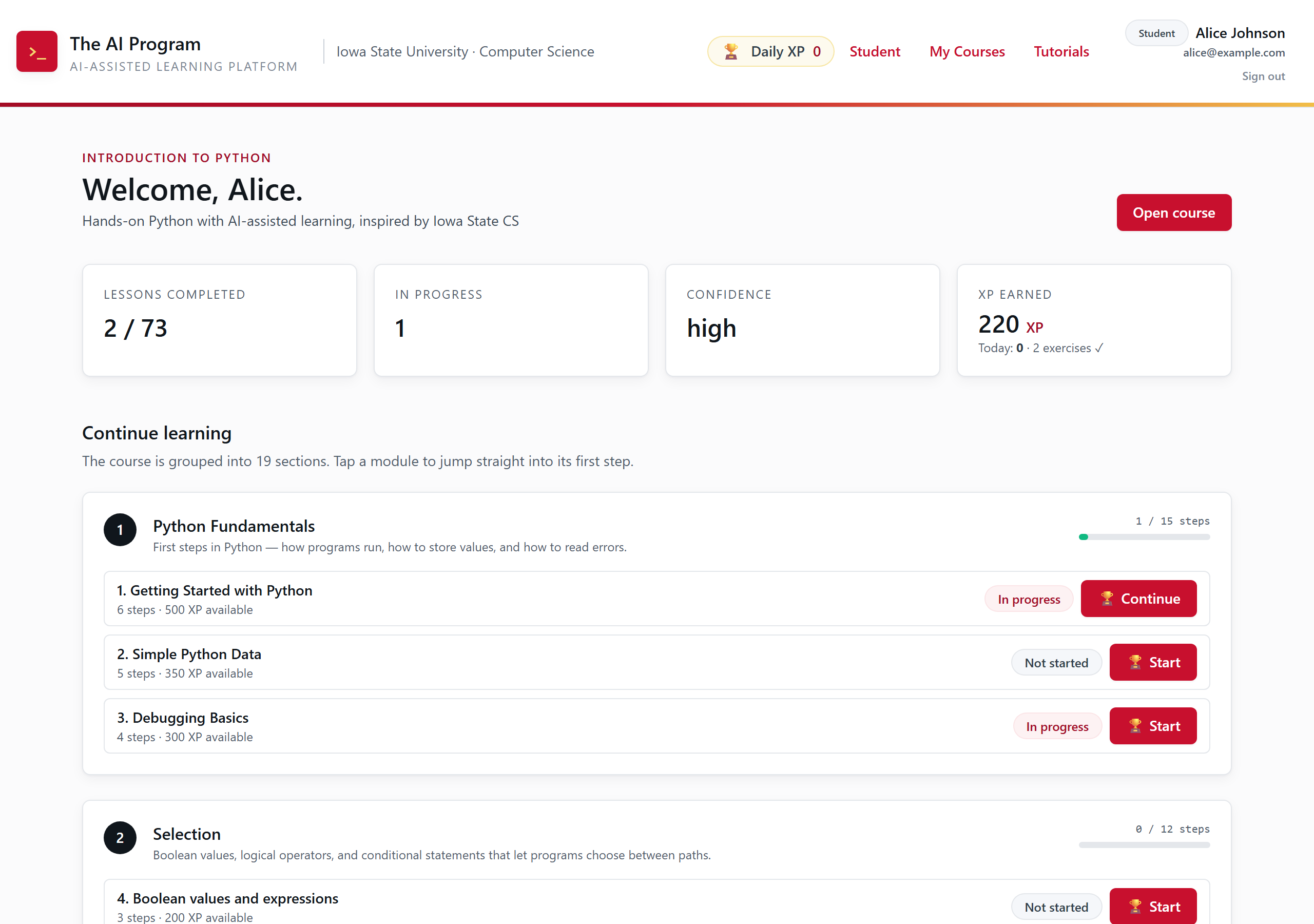
Your dashboard. Every number here comes from work you actually finished, not from a box you ticked. Tip. Confidence is not a grade. It is a rough read on how you have been doing, and it shapes how the AI tutor talks to you.